A page for the whole order
Sell products, tickets or take donations from one shareable page. Set your prices, stock and questions, then let customers pay for the whole order at once.
· The Xtopay team · 3 min read
On this page
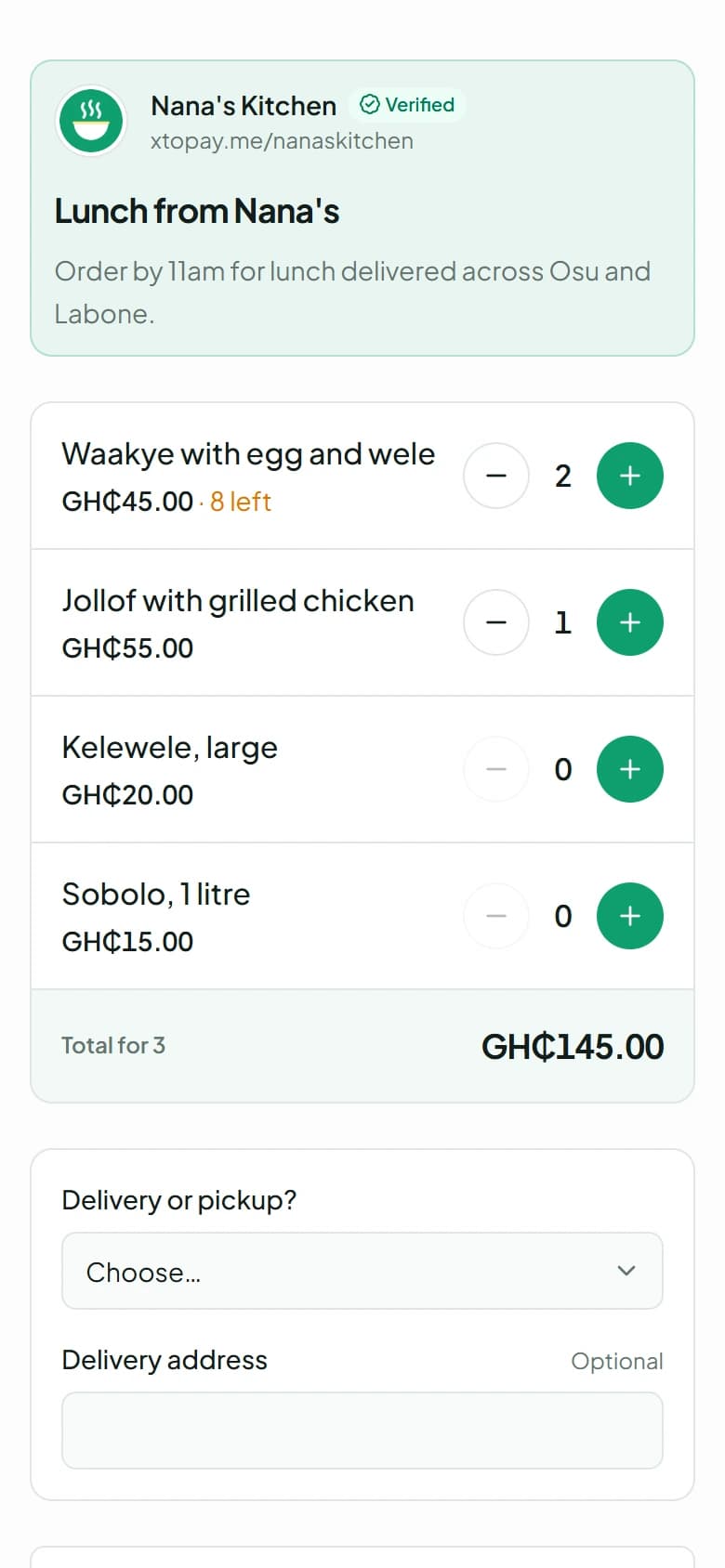
A payment link is a simple way to collect payment for one thing. A payment page is for the fuller order: a customer can choose products, pick event tickets or make a donation before paying.
Choose what the page is for
Start by choosing one of three kinds of page:
- Products: list up to 50 items, each with a name, price and picture. Add stock if you want to limit how many can be bought.
- Event tickets: set the dates and venue, then add ticket types such as Regular or VIP, each with its own price and availability.
- Donations: offer up to six amounts to choose from, allow a custom amount if you like, and add a goal to show what's been raised.
Each page has one kind, so choose the one that matches what you're collecting for.
Make the page yours
Add a title, an address, a description and a cover picture. As you work, the preview shows the page in your business's colours. For a product page, add the items people can order; for an event, add its ticket options; for donations, choose the suggested amounts and whether people can enter their own.
You can ask for up to 10 answers too: a short response, a number or a choice from options. Make a question required when you need the answer to fill an order. Event pages always ask for an email address so tickets can be sent there.
Stock keeps orders in step
Set a stock number for a product or ticket type, or leave it unlimited. Customers see how many are left when stock is low, and the page marks an item sold out when it reaches zero. While a customer pays, their selection is held for 30 minutes, so two customers can't both buy the last item.
After an order, open the page in your dashboard to see what the customer bought and their answers. Export the orders as a CSV when you need a sheet for packing or deliveries.
Tickets are ready for the door
When an event ticket payment succeeds, each person gets a ticket with its own code and QR code. Tickets are linked from the receipt, and are emailed to customers who gave an email address. At the event, your team can find a ticket by its code, link or holder's name and check it in once.
Share the page, then take payment
Publish the page, copy its address and share it on WhatsApp, or get a QR code for people to scan in person. Customers choose what they want and answer your questions on the page, then go to checkout to pay by Mobile Money or card.
For a single item with a set price, a payment link may be simpler. For a menu, a line-up of tickets or several donation amounts, one payment page keeps the choices and the full order together.
See how payment pages work, or make one from Payment pages in your dashboard.
 The Xtopay teamWe build Xtopay at Sendexa, in Ghana. Questions or ideas for a post? Write to hello@xtopay.co.